Document Reader & PDF Editor
- 4.6
- Rating
- 100.00M
- Installs
- Free
- Price
 Analysis by App-foxy
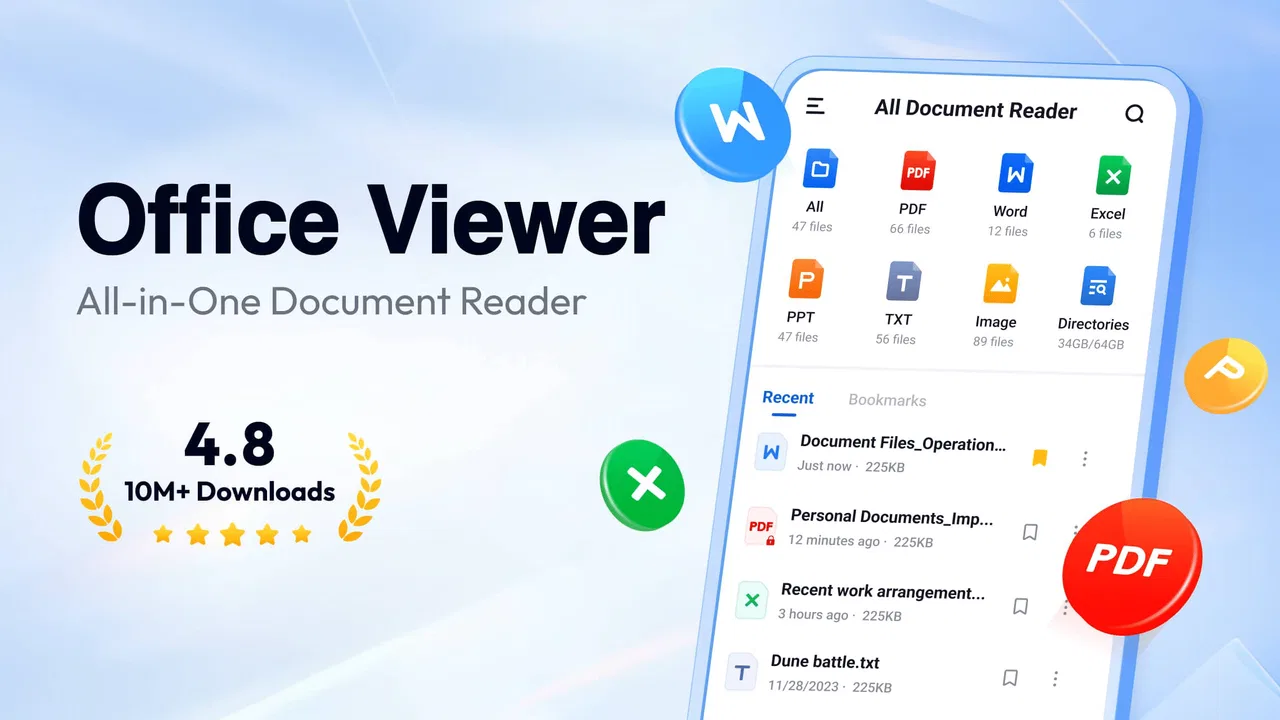
I opened Document Reader & PDF Editor expecting a straightforward file viewer, and that is exactly where it makes the best first impression. It is a productivity app from QR Code Scanner that brings several familiar document formats into one place instead of making me switch between separate readers. I can use it for PDFs, DOCX files, spreadsheets, presentations, and plain text documents, which makes it especially practical on a phone or tablet used for everyday paperwork.
The app is free to download and suitable for everyone, with optional in-app purchases ranging from $4.99 to $19.99 per item. Its current version is 1.2.9.72, and it runs on Android 6.0 or later. Those details matter for first-time users because the app is aimed at broad device compatibility rather than only newer phones. I would still check that my phone has enough free space for the documents I plan to keep available, particularly if I often receive large PDFs.
What stood out to me first is the app’s simple purpose: find a document, open it, and read it without hunting for a compatible app. That sounds basic, but it solves a real annoyance. A file received through email, messaging, cloud storage, or a work portal can otherwise send me through several installation prompts before I even see the first page.
You May Also Like

 Blood Strike: 2.5 Anniversary
Blood Strike’s Loadouts Turn Every Drop Into a Tactical Gamble
A close look at Blood Strike’s custom loadouts: how fast access to signature weapons reshapes its battle royale rhythm, rewards preparation, and narrows the gap between fights.

 Pandora - Music & Podcasts
Pandora’s Music Is Easy to Start, but Harder to Recover
Pandora’s strength is its low-effort path from a seed to a station. Its weak spot is how much confidence it asks you to place in connection, setup, and quiet recovery.

 8 Ball Pool
 Is Built on Rivalries, Rematches, and Routine
A close look at the rivalries, rematches, shared routines, and unanswered safety questions that turn a quick pool match into a persistent mobile community.

 Samsung Music
’s Quiet Strength Is Playing What You Already Own
Its reach comes less from spectacle than from dependable access to a personal library. That simplicity is both the app’s strongest retention engine and its ceiling.

 AccuWeather: Weather Radar
AccuWeather Review: A Quick, Clear Forecast for Everyday Decisions
For everyday plans, the best forecast is the one you can understand quickly. AccuWeather makes rain timing, radar, and local conditions easy to act on, with a few trade-offs.

 Hill Climb Racing
Why Hill Climb Racing Still Turns Crashes Into One More Run
A tiny car, a bumpy hill and one more upgrade: Hill Climb Racing keeps resurfacing because its simple chaos makes every near-miss feel personal.
More From Our News Desk



What the app feels like for a first-time user
The store summary presents it as an all-in-one file viewer, and that description matches the main experience. I see it as a general-purpose reading tool rather than a replacement for a full office suite. It is useful when I need to inspect a document quickly, confirm that an attachment opens correctly, or read material away from a computer.
That distinction is important. Someone who mainly needs to edit complex spreadsheets, build presentations, or collaborate on documents may prefer a dedicated office application. Document Reader & PDF Editor is more appealing when the immediate job is opening and reviewing different file types in one familiar environment.
The app has built a strong audience, with an average rating of 4.7 from around 394 thousand ratings and more than 50 million installs. I do not treat popularity as proof that every workflow will suit me, but it does suggest that the basic promise—opening common documents on a mobile device—has broad appeal.
My advice is to install it with one specific task in mind. Do not begin by importing every file on the phone. Start with a document you already need, such as a received PDF, a DOCX attachment, or a presentation you want to check before a meeting. That approach makes the first session less confusing and gives you a clear test of whether the app fits your routine.
Setting up without making the process harder
After installation, I would keep the first setup deliberately small. Open the app, look for the document list or file-browsing area, and identify how it presents files already stored on the device. If the document you want is not immediately visible, use the app’s browsing route rather than assuming the file is missing. On Android, attachments can remain inside another app’s download or document folder, so knowing where the original file was saved is often more useful than repeatedly searching the reader.
A helpful habit is to rename important files before opening them, when the source app allows it. Names such as “meeting-notes,” “travel-confirmation,” or “invoice-March” are easier to recognize than a string of characters generated by an email system. This is not a special feature of the reader, but it makes the app’s file list much more manageable when several documents look alike.
I also recommend testing one file from each format you expect to use. A PDF may be the most common choice, but a DOCX document, XLS spreadsheet, PPT presentation, and TXT file can behave differently on a small screen. Opening them early tells me whether the app belongs in my daily workflow or is better kept as a backup viewer.
The developer is listed as QR Code Scanner, which is worth noticing because the name does not describe the document-reading purpose very clearly. I would not let that label confuse me: the product itself is presented as a document reader, and the relevant question is whether it opens the files I actually receive.
Reaching the first useful result
My recommended first success is simple: open one real document and make it readable enough to use. For a PDF, I would choose a file with several pages rather than a one-page sample. Scroll through it, check whether text remains comfortable to read, and try the normal zoom gestures. Then close the file and open it again from the app’s document area. That second opening tests whether I can return to the same material without repeating the entire search.
This small workflow answers the questions that matter most to a new user. Can I locate a file? Can I read it without awkward navigation? Can I find it again later? If the answer is yes, the app has already done something useful before I explore anything else.
For a practical everyday example, imagine receiving a travel confirmation while standing at a station. I would open the attachment in the reader, enlarge the relevant section, and keep the document available while checking the departure details. The advantage is not advanced editing; it is reducing the number of steps between receiving the file and seeing the information I need.
Another useful scenario is a student reviewing lecture material downloaded as PDFs alongside a DOCX assignment brief. Instead of remembering which app opens each file, the student can try using this reader as the common starting point. I would still use the original editing software for changing the assignment, but this app can be convenient for quick reading and comparison.
Where first-time users may hesitate
The phrase “PDF Editor” can create expectations that go beyond simple reading. I would approach that wording carefully and test the exact editing action I need before relying on it for important work. Reading a PDF, adding or changing content, and reorganizing a document are different tasks. A user who needs professional document production should compare the result with a dedicated editor rather than assuming that every desktop-style function is available in the same way on a phone.
The same caution applies to office formats. A spreadsheet may open successfully but still be difficult to work with on a narrow display. Tables, wide columns, and slide layouts often require more horizontal movement than a phone encourages. For inspection, the app can be useful; for detailed editing, a larger screen and a specialized office tool may be the better choice.
Another point of friction is file location. A reader can only be convenient when I understand where my documents are stored. If a file lives in a cloud service or inside a messaging app, I may need to open or save it through that service before the reader can access it. That is a normal mobile workflow issue, but it can feel like an app problem when the file does not appear immediately.
I would also pay attention to the difference between the free experience and optional purchases. The app is free, but in-app purchases are available, so I would review any purchase screen carefully and decide whether the extra option solves a problem I actually have. For occasional reading, I would begin with the free version rather than paying in advance.
Using it efficiently after the first day
Once the basic workflow works, I would turn the reader into a deliberate document hub instead of a dumping ground. Keep only active or useful files easy to find, and remove duplicate downloads from the device when they are no longer needed. This is especially helpful with repeated attachments, where “final,” “final-2,” and “final-new” can become difficult to distinguish.
For long PDFs, I would avoid reading every page from the beginning when my goal is simply to confirm one detail. Use the document’s navigation tools if available, and remember the page or section where I stopped. The practical insight here is that a mobile reader is often strongest as a retrieval tool: it helps me reach a specific piece of information quickly, even when it is not the best environment for deep editing.
For presentations, I would use it as a pre-meeting check. Open the file on the same type of screen I expect to use, move through the slides, and look for text that becomes too small or layouts that feel crowded. A presentation that looks fine on a laptop may be uncomfortable on a phone. This check does not replace presenting software, but it can prevent a last-minute surprise.
Plain text files are another understated use case. They are often overlooked because they appear simple, yet they can contain notes, logs, instructions, or exported information that I need to read without formatting distractions. The reader’s support for TXT files makes it a handy place to inspect those files alongside richer documents.
How it compares with the usual alternatives
The usual alternative is to rely on separate apps: one for PDFs, one for Word documents, one for spreadsheets, and another for presentations. That arrangement may offer deeper controls, but it also creates a fragmented experience. Document Reader & PDF Editor is more convenient when my priority is opening mixed attachments quickly and keeping the first step consistent.
A dedicated PDF application is likely the stronger option for someone who annotates heavily, fills forms regularly, or manages a large professional archive. A full office suite is usually better for creating and revising complex DOCX, XLS, and PPT files. A cloud-based workspace can be preferable when several people need to edit the same document together. I would choose this app when reading and basic document access matter more than advanced collaboration.
There is also a privacy and organization trade-off in using a general reader. The more places I keep copies of a document, the harder it becomes to know which version is current. I would avoid opening sensitive files from random duplicate locations and would keep important originals in the storage system I already trust. The app is best treated as a viewing route, not automatically as the master archive for every document.
Its broad compatibility is therefore both its strength and its boundary. Having PDFs, DOCX, XLS, PPT, and TXT files in one app is convenient, but broad support does not guarantee that every advanced layout or editing behavior will match a desktop program. My choice would depend on whether I need access or full control.
Who will get the most from it
I think this app suits people who frequently receive documents but do not want to maintain a collection of specialized readers. It can be useful for commuters, students, families handling forms, and workers who need to check attachments away from a computer. It also makes sense as a backup option on an older compatible Android device, since the minimum operating system is Android 6.0.
It is less suitable for a user whose main purpose is professional document creation. If I spend most of my day changing spreadsheet formulas, adjusting slide layouts, tracking revisions, or collaborating with colleagues, I would start with a dedicated office platform. The reader can still help me preview files, but it would not be my only tool.
I would also skip it as my primary choice if I need a carefully organized document-management system with advanced search, team permissions, or a shared editing history. Those needs call for a more specialized solution. The value here is speed and variety, not a complete replacement for every productivity workflow.
The next step after trying the basics
After opening a few genuine files, I would make a simple decision. If the app reliably helps me reach PDFs and office documents faster than my current collection of apps, I would keep it as my everyday reader. If one format opens but is awkward to use, I would keep a specialist app for that format and use this one for the rest. There is no reason to force every document into one tool when the tasks are different.
I would also test the app with the documents I actually handle, not only clean sample files. Try a long PDF, a wide spreadsheet, a presentation with several slides, a DOCX with headings, and a plain text note. That small set reveals more about the practical experience than a quick glance at the interface.
With an average rating of 4.7 and a large installed audience, Document Reader & PDF Editor is clearly not a niche experiment. My own recommendation is more specific: choose it when your biggest problem is opening mixed document types quickly on Android. It gives first-time users a reassuring path from installation to a useful result, provided they keep their expectations realistic about complex editing.
In the end, I see it as a convenient front door for mobile documents. It saves me from asking which app should open an attachment, handles several familiar formats, and works well for reading on demand. Its limits become clearer when the task turns into serious editing, collaboration, or document management. For quick access and everyday checking, though, Document Reader & PDF Editor is a sensible free starting point, and its Everyone age rating makes it approachable for a broad range of users.
FAQs for Document Reader & PDF Editor
01What features does the Document Reader & PDF Editor offer?
The Document Reader & PDF Editor provides a comprehensive suite of tools for viewing, editing, and managing PDF files. Users can annotate documents, convert files to various formats, merge PDFs, and add digital signatures. Additionally, the app supports cloud integration, allowing easy access and sharing of documents across devices.
02Is the Document Reader & PDF Editor free to use?
The app offers a free version with basic features like viewing and annotating PDFs. However, advanced functionalities such as PDF conversion, merging, and digital signatures may require a premium subscription. Users can opt for monthly or yearly plans, and there’s often a free trial available to explore premium features.
03How user-friendly is the Document Reader & PDF Editor?
The app is designed with a user-friendly interface, making it easy for both beginners and professionals to navigate. It features intuitive menus, clear icons, and helpful tutorials for new users. Whether you’re editing a PDF or converting a document, the streamlined design ensures a smooth experience.
04Can I use the Document Reader & PDF Editor offline?
Yes, the app allows offline access for viewing and editing PDFs, which is ideal for users on the go. However, certain features like cloud integration and online storage access require an internet connection. This ensures that you can work on your documents anytime, without depending on connectivity.
05Is the Document Reader & PDF Editor secure for handling sensitive documents?
Security is a priority for the app, featuring robust encryption for documents and the ability to set passwords for sensitive files. The app’s privacy policy ensures that user data is handled with care. Additionally, regular updates are provided to enhance security features and protect against vulnerabilities.
Pros
- Supports multiple file formats.
- Easy-to-use interface.
- Fast document loading.
- Offline access available.
- Annotations and editing tools.
Cons
- Limited advanced editing features.
- Occasional ads in free version.
- Requires in-app purchases.
- Some features need internet.
- Limited cloud storage options.

Document Reader & PDF Editor
Gallery